ip
Awebo User Guide
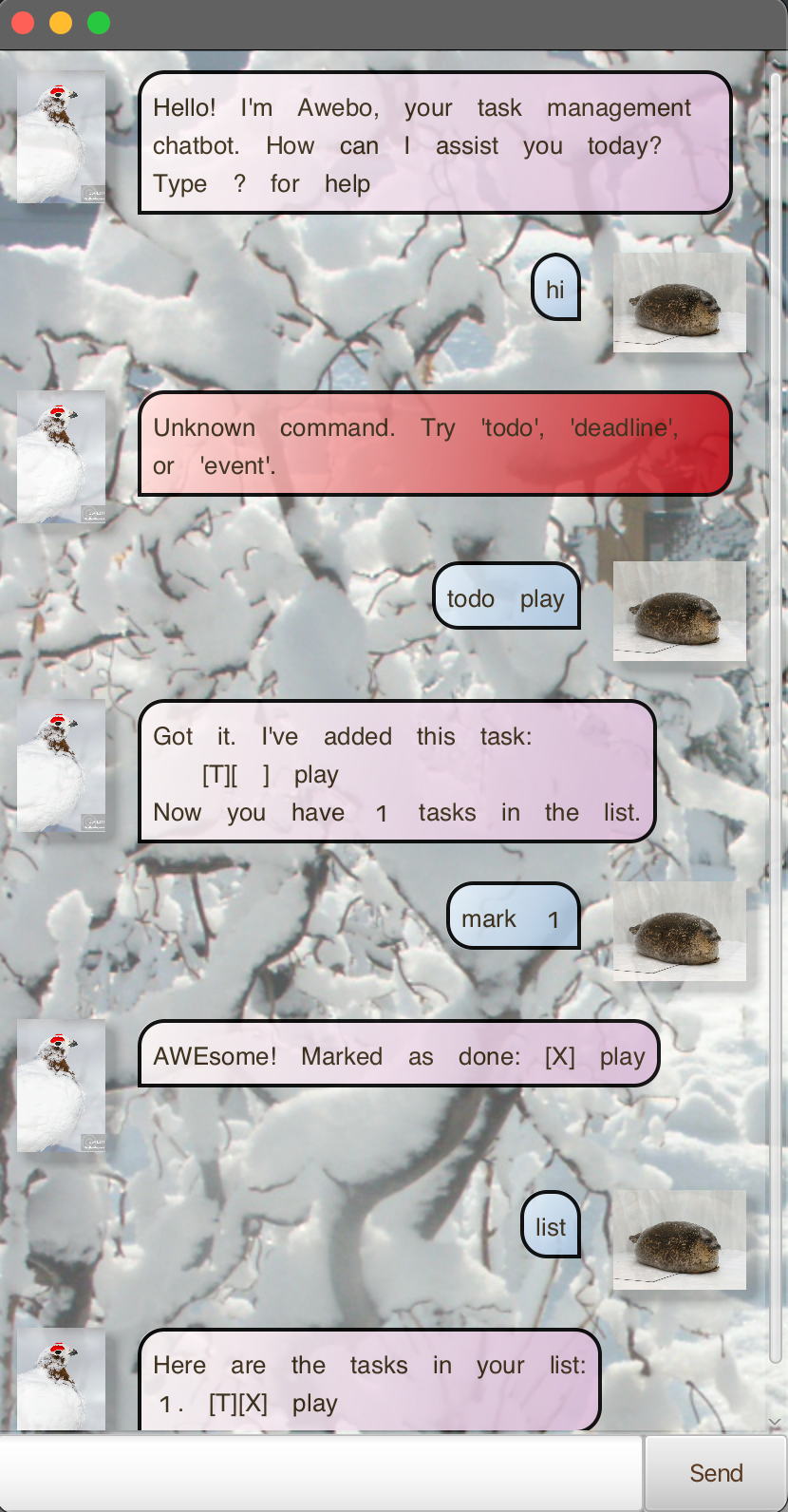
Awebo Chat is an intuitive communication and task management tool designed to streamline collaboration. Stay organized with real-time task assignment and progress monitoring, all in one platform.
Table of Contents
- Getting Started
- Creating a New Task
- Setting a Task Deadline
- Scheduling an Event
- Viewing Active Tasks
- Finding Tasks
- Completing Tasks
- Reversing Task Completion
- Removing Tasks
- Duplicate Identifier
- Support & Assistance
Getting Started
- Ensure Java 21 is installed on your computer
- Download Awebo.jar from here
- Launch the application by running the following command:
java -jar Awebo.jar
Creating a ToDo Task
To create a task without a deadline, type todo , followed by a space and the task description:
Example: todo fyp presentation slides
Setting a Task Deadline
To create a task with a deadline, type deadline , followed by task description, /by , and date and time in HHmm D/M/Y format:
Example: deadline submit math assignment /by 28/02/2025 1800
Scheduling an Event
To create a task with a start and end time, type event , followed by task description, /from , date and time in HHmm D/M/Y format, /to , date and time in HHmm D/M/Y format:
Example: event Fyp Meeting /from 28/02/2025 1500 /to 28/02/2025 1800
Viewing Tasks
To view all your tasks, type list to view all tasks:
Example: list
Finding Tasks
To find a task containing a keyword, type find , followed by keyword:
Example: find fyp
Completing Tasks
To mark tasks as completed, type mark , followed by task number:
Example: mark 2
Reversing Task Completion
To unmark tasks from completed to active, type unmwark , followed by task number:
unmark 2
Removing Tasks
To remove task from list, type remove, followed by task number:
remove 2
Duplicate Identifier
Awebo can detect duplicates if the task to be added has exactly the same contents as an existing task. Awebo will not let the duplicate to be added. Awebo’s response to duplicates:
Warning: This task is a duplicate and cannot be added until removed.
Support & Assistance
To get help for the commands available to be used, type ? to get help
Cheer
To get a randomly generated cheer, type cheer